Chat
Chat works in the context of the selected team and brand. Choose New Chat in the sidebar to start a conversation, or reopen an existing conversation from the sidebar history.
Create an image or video ad (recommended starting point)
Start in Chat when you want to create a new image or video ad. Chat and the Flow Editor are the default creation workflow; you do not need to start with the older Creative Sets wizard or its Advanced copy fields.
- Select the team and brand, then choose New Chat.
- Describe the ad you want: image or video, the product, audience, message, and placement or size. Add product images or a reference when useful.
- Review the response and answer any questions about missing inputs. When Chat proposes a flow, open its flow card to review the Flow Preview before continuing.
- Ask Chat to adjust the concept or flow. Use the available save/open actions to keep the work in Projects and continue editing in Flow Editor on desktop.
- Review the generated outputs before downloading or using them. Creating a flow is not the same as completing generation; follow the current flow's review and generation controls.
For example: “Create three square image ads for this product, aimed at first-time buyers. Use the attached product photo and highlight the introductory offer.”
If you already have a generated image or video, open its preview and use Open in editor when available. On mobile, this action explains how to continue editing on a computer.
For a general “How do I make an image/video ad?” question, follow this Chat → flow review → Flow Editor/Projects path first. Use Projects to reopen editable work and Creations to find generated media. Older Creative Sets links are retained in the legacy guide.
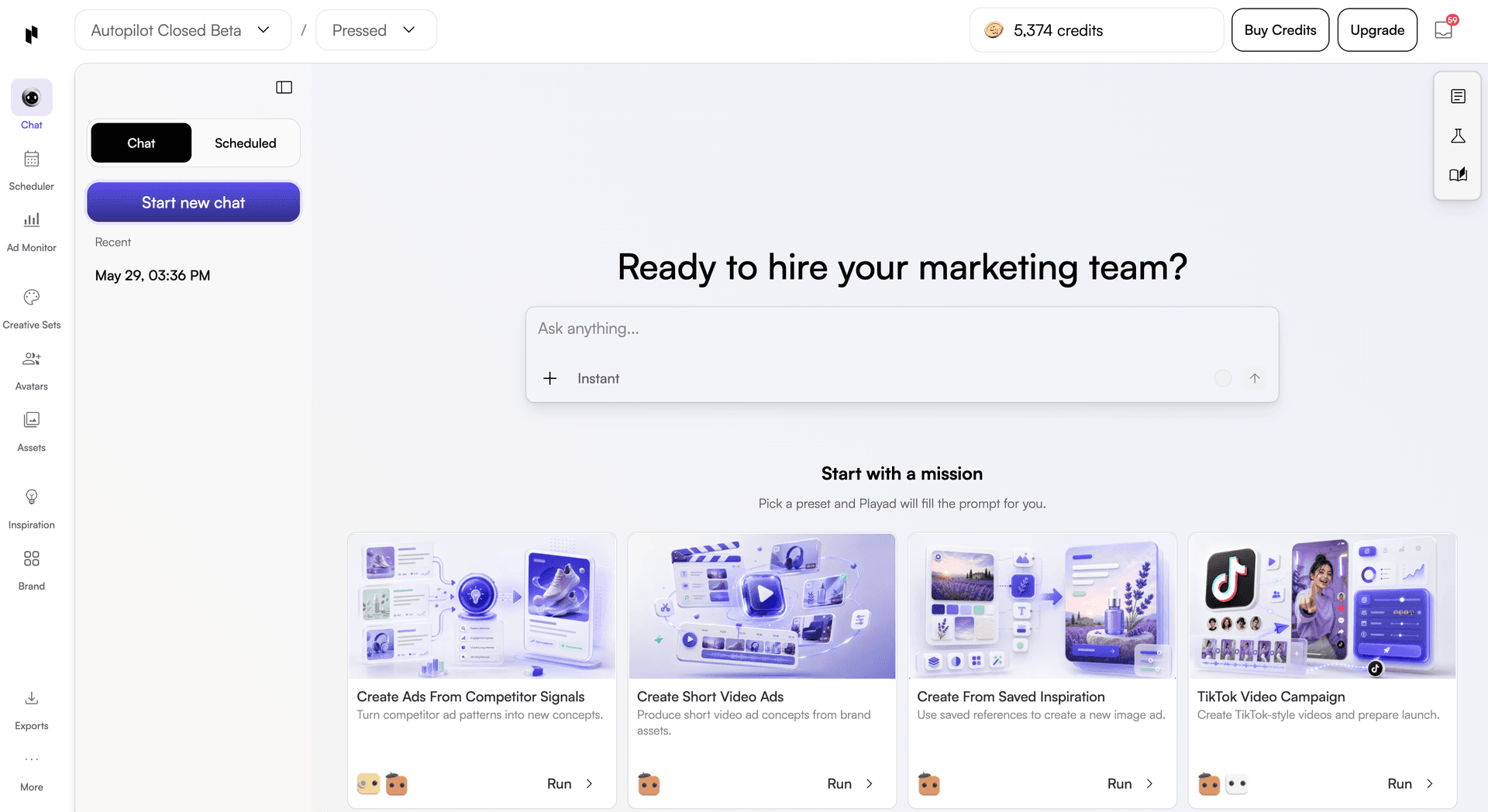
Start a task
Write a specific request with your goal, audience, and desired output. On the new-chat screen, Research, Analyze, Create, and Launch open suggested tasks. Select one to start from a prepared request, then review the request and provide any missing details.
For example, ask for competitor research, a performance explanation, image or video concepts, or a campaign plan. An ad account connection may be needed for tasks that use live advertising data.
Ask how to use Playad
Ask a specific question such as "Where do I find my generated videos?", "How do I connect an ad account?", or "How are Projects and Creations different?" The assistant can search Playad documentation and link to guide pages. Open the cited page for the full steps, and check that the answer matches the page you are using.
Include the page name, the step you reached, and any visible error. If an answer does not resolve the question, choose Support in the sidebar to contact the team through the support widget. A how-to question can be asked on its own without requesting ad creation or launch.
사용 방법을 모르거나 어디에 질문할지 막막하면 Chat에 궁금한 기능과 현재 화면을 적어 주세요. 광고를 만들거나 실행해 달라는 요청 없이 사용법만 물어볼 수 있어요. 답변의 가이드 링크에서 자세한 단계를 확인해 주세요. 해결되지 않으면 사이드바의 Support에서 팀에 문의해 주세요.
Reopen previous work
The history combines regular conversations and scheduled work in one list. Use the available search, pin, and rename controls to find and organize conversations. Scheduled work can appear as a group of runs; open the relevant run to review its result.
Use the input at the bottom to continue the current conversation. For a new objective that needs its own context, start a new chat.
Review generated work
Responses can include text, research documents, reports, schedules, and image or video results. Open a result's preview or available action to inspect it. Media previews can provide navigation and download controls, depending on the result type.
Find generated media in the original conversation and Creations for the same brand. Use Projects to open an associated editable project when one exists.
Revise a result
Refer to the specific result and describe the change you want. Useful follow-ups include:
- "Revise the second concept with a stronger offer."
- "Keep the product image, but shorten the headline."
- "Generate three options with the same presenter."
- "Use this result as the direction for a new project."
Review the new result before using or launching it.
Use Thinking modes
Quick is the default Thinking mode when no saved user or session setting overrides it. Use the composer's Thinking control to change the amount of planning. Turning Thinking off uses Instant.
- Instant: simple edits and quick checks.
- Quick: straightforward planning, creation, or lookup.
- Standard: balanced planning.
- Thorough: more careful analysis.
- Comprehensive: complex, multi-step strategy.
Choose a mode for the work you are asking the assistant to do. Changing Thinking mode is separate from approving actions.
Choose how the assistant asks for approval
The composer also has an action-approval control:
- Ask / Ask permission: asks you to approve creative and ad setup actions.
- Auto / Auto approve: approves those routine steps for you and checks in when direction is unclear.
- Autopilot: works more independently and sets its own direction.
The chosen mode does not remove every approval requirement. Review any permission request that appears. Use Settings → Permissions to review actions you have allowed to run automatically; spending-related permissions can also depend on account limits.
Connected flows
Clone in Inspiration, Launch in Creations, and a new scheduling request in Scheduler can open Chat with context from the originating page. Review that context before continuing.
Brand website analysis stays on the Brand page, and PDF-based brand updates run in the background. Check Brand for their results.
Related terms
Brand
Analyze a brand website and maintain the identity, audience, and reference material used in creative work.
Creations
Find generated media, imported files, and editor exports in one place.
Scheduler
Plan upcoming events, request scheduled work in Chat, and manage existing recurring tasks.
Settings and Support
Find account and team settings, manage permissions and credits, and contact support.